Navigating the WebAuthn event log on Windows

The WebAuthn event log in Windows is a very useful resource to troubleshoot issues with FIDO2 security key use on Windows. But they can seem quite verbose and noisy at first glance.

It may help therefore to know the applications/processes that are the sources for the event log entries and the sequence of expects events. These are the most common sources for event log entries.

  • User process/Web browser like Edge/Chrome/Firefox
  • Credentialuibroker.exe – This is the GUI prompt users interact with when choosing to enter a pin (or a fingerprint)
  • Bioenrollmenthost.exe – This is accessible via the settings app and is used to manage the key to add/change pin, add fingerprints or reset the key
  • LogonUI.exe – UX for collecting credentials at interactive logon via FIDO2
  • Cryptsvc/svchost.exe – Windows Service that handles the CTAP2 communication with the key

Here are some common scenarios where you may be reviewing the event log.

  1. Web browser logon to a website or credential provisioning.
    This scenario involves events by the browser (msedge.exe), the credentialuibroker.exe and the cryptsvc/svchost.exe.
  2. Interactive logon to Windows.
    This scenario involves events by the logonui.exe and the cryptsvc/svchost.exe.
  3. Managing FIDO2 key via Windows Settings app to reset key or add a pin.
    This scenario involves events by the bioenrollmenthost.exe and the cryptsvc/svchost.exe.

Please note any activity done in a private mode browser is NOT logged by default in the event log. This is intentional and by design. So if you are troubleshooting some unexpected behaviour when using a browser, using a normal mode browser is encouraged.

Some of the activity in the event log will be quite clear to understand. This event below identifies the FIDO2 client app that is initiating a CTAP2 communication with a key. Looking at the process ID will help you identify which of the above common processes logged the event.

Log Name:      Microsoft-Windows-WebAuthN/Operational
Source:        Microsoft-Windows-WebAuthN
Date:          10/01/2024 16:37:21
Event ID:      2106
Task Category: Ctap Function
Level:         Information
Keywords:      Ctap
User:          NETWORK SERVICE
Computer:      maweeras2
Description:
Ctap Name: ImageName Value: C:\Program Files (x86)\Google\Chrome\Application\chrome.exe
Event Xml:
<Event xmlns=”http://schemas.microsoft.com/win/2004/08/events/event”>
   <System>
     <Provider Name=”Microsoft-Windows-WebAuthN” Guid=”{3ae1ea61-c002-47fb-b06c-4022a8c98929}” />
     <EventID>2106</EventID>
     <Version>0</Version>
     <Level>4</Level>
     <Task>503</Task>
     <Opcode>12</Opcode>
     <Keywords>0x8000000000000002</Keywords>
     <TimeCreated SystemTime=”2024-01-10T16:37:21.6574939Z” />
     <EventRecordID>1755</EventRecordID>
     <Correlation ActivityID=”{4e644e15-4525-48e9-b91e-97b8e3d215ab}” />
     <Execution ProcessID=”5464″ ThreadID=”15264″ />
     <Channel>Microsoft-Windows-WebAuthN/Operational</Channel>
     <Computer>maweeras2</Computer>
     <Security UserID=”S-1-5-20″ />
   </System>
   <EventData>
     <Data Name=”Name”>ImageName</Data>
     <Data Name=”Value”>C:\Program Files (x86)\Google\Chrome\Application\chrome.exe</Data>
   </EventData>
</Event>

For the most part I expect the CTAP2 communication with the key done by cryptsvc(svchost.exe) will be what you will want to decipher. Based on the protocol (USB,NFC,BLE or Hybrid) used to access the security key, you may decode the CTAP2 messages using something like https://cbor.me and reference the CTAP 2.1 spec for clarity on what the request generated by the platform (Windows) was and the response from the key.

I recently had to delve deep to troubleshoot an inability to provision credentials for Entra ID on a Yubikey which turned out to be a very simple root cause.

The customer claimed they were trying to provision credentials on the Yubikey for Entra at the https://aka.ms/mysecurityinfo page and had tried the same key via USB and NFC (via a HID Global OMNIKEY 5022 Smart Card Reader) to no avail.

Log Name:      Microsoft-Windows-WebAuthN/Operational
Source:        Microsoft-Windows-WebAuthN
Date:          04/01/2024 21:16:41
Event ID:      2225
Task Category: Ctap Usb Send Receive
Level:         Verbose
Keywords:      Ctap,Ctap
User:          NETWORK SERVICE
Computer:      C4LR9T2.#####
Description:
Ctap Usb Send Receive:

TransactionId: {c2d7b486-d657-47a5-bb72-0063b5ff2027}
Request Command: 0x90 Response Command: 0x90
Request: 0x06A201020201
Response: 0x00A10300

The request decoded is 6, {1: 2, 2: 1}. This as per spec https://fidoalliance.org/specs/fido-v2.1-ps-20210615/fido-client-to-authenticator-protocol-v2.1-ps-errata-20220621.html#authenticatorClientPIN is a clientpin call using pin protocol 2 and a subcommand to get the number of pin retries back.

The response decoded is 0, {3: 0}. That means 0 attempts left for pin retries.

In a healthy unlocked key you would get something like

Log Name:      Microsoft-Windows-WebAuthN/Operational
Source:        Microsoft-Windows-WebAuthN
Date:          05/01/2024 14:56:01
Event ID:      2225
Task Category: Ctap Usb Send Receive
Level:         Verbose
Keywords:      Usb,Ctap
User:          NETWORK SERVICE
Computer:      maweeras2
Description:
Ctap Usb Send Receive:

TransactionId: {3d9121d6-1b86-4946-8fe4-d10dee2e676e}
Request Command: 0x90 Response Command: 0x90
Request: 0x06A201020201
Response: 0x00A10308

Here is the response decoded is 0, {3: 8} meaning 8 attempts left.

But in the customer’s case as they had 0 attempts left in their response, they had locked the key which resulted in

Log Name:      Microsoft-Windows-WebAuthN/Operational
Source:        Microsoft-Windows-WebAuthN
Date:          04/01/2024 21:16:44
Event ID:      2212
Task Category: Ctap Usb Device Thread
Level:         Error
Keywords:      Ctap,Ctap
User:          NETWORK SERVICE
Computer:      C4LR9T2.s###
Description:
Ctap Usb device thread completed.

TransactionId: {c2d7b486-d657-47a5-bb72-0063b5ff2027}
DevicePath: \\?\hid#vid_1050&pid_0407&mi_01#7&20e3b796&0&0000#{4d1e55b2-f16f-11cf-88cb-001111000030}
Manufacturer: Yubico
Product: YubiKey OTP+FIDO+CCID
AAGuid: {2fc0579f-8113-47ea-b116-bb5a8db9202a}
U2fProtocol: false
State: 6
Status: 0x43
Error: 0x8009030C. The logon attempt failed

As per the spec, this requires a complete reset of the key for security reasons which will result in wiping all credentials currently on the key. The key cannot be used while locked for any getassertion operations even if the correct pin is now known. So users need to be educated not to try lock their keys by making typographical errors.

It would have been arguably more intuitive to have an event indicating the key as locked and requiring a reset. But in the absence of more user friendly clarity in the event log, you may have to decode the CTAP2 messages using something like https://cbor.me to make head or tail out of what the platform/key conversation was. Especially when you are not sure who among many parties involved (the security key vendor, Microsoft for the Windows platform, Browser vendor or the relying party processing the makecredential response) is to blame.

Identifying FIDO2 key capabilities

Here is a tip for identifying what your FIDO2 key’s capabilities are. This is useful when you don’t have access to docs from the vendor or just want to be certain of the key capabilities.

The below process is written for those using Windows 10.

    1. Open the settings app
      fidogetinfo1
    2. Click “Accounts”—> “Sign-in Options” –> “Security Key” and then click “Manage”
      fidogetinfo2
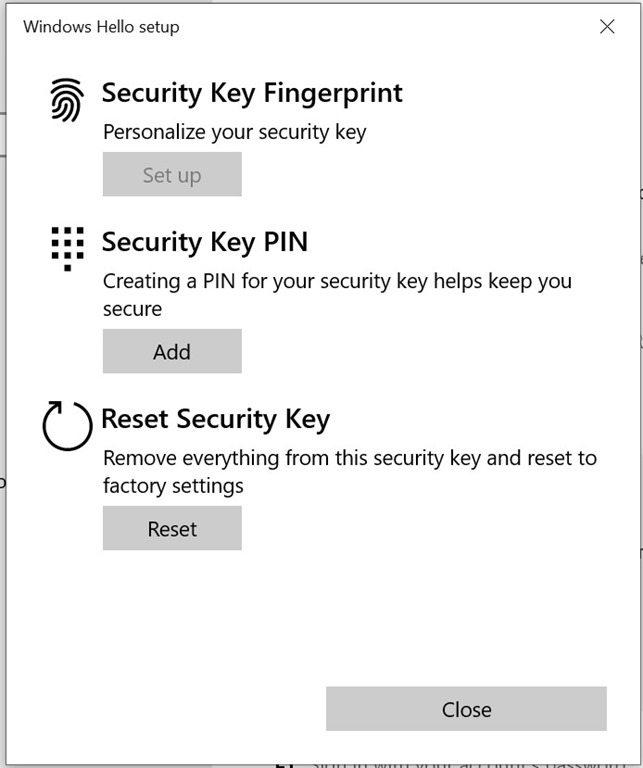
    3. Insert your security key if you haven’t already done so now. Then tap your key.
      fidogetinfo3
      fidogetinfo4
    4. Now click close.
      fidogetinfo5
    5. Open the Event Viewer and navigate to “Application and Services” –> “Microsoft” –> “Windows” –> “WebAuthn” –> “operational”
    6. Filter for event “2102” to get CTAP responses.fidogetinfo6fidogetinfo7
    7. Use “Find” to locate the most recent “GetInfo” CTAP command response. You should have a response like so.fidogetinfo9
    8. Copy the entire hexadecimal response value to your clipboard.
    9. Open your preferred web browser and navigate to http://cbor.me
    10. Paste the copied response on the right in the “Bytes” section. Select “emb cbor” for embedded cbor and click the “left arrow” to decode into CBOR diagnostic notation.
      fidogetinfo11
    11. You should see a response like so.
      fidogetinfo12
    12. I’ve pasted a prettified version of the CBOR diagnostic notation the left below.

[{“deviceInfo”:
{“providerType”: “Hid”,
“providerName”: “MicrosoftCtapHidProvider”,
“devicePath”: “\\\\?\\hid#vid_096e&pid_0866&mi_00#7&7cce53e&0&0000\#{4d1e55b2-f16f-11cf-88cb-001111000030}”,
“manufacturer”: “FS”,
“product”: “BioPassFIDO2”,
“pinStatus”: 0,
“pinRetries”: 8},

“status”: 0,
“response”: << 0,
{1: [“FIDO_2_0”, “FIDO_2_1_PRE”],
2: [“credProtect”, “hmac-secret”],
3: h’12DED7454BED47D4ABAAE713F51D6393′,
4: {“rk”: true, “up”: true, “uv”: false, “plat”: false, “clientPin”: false, “credentialMgmtPreview”: true, “userVerificationMgmtPreview”: false},
5: 2048,
6: [1],
7: 10,
8: 96,
9: [“usb”],
10: [{“alg”: -7, “type”: “public-key”}]} >>}]

The spec documents at https://fidoalliance.org/specs/fido-v2.0-ps-20190130/fido-client-to-authenticator-protocol-v2.0-ps-20190130.html#authenticatorGetInfo help us understand the response for pure CTAP 2.0 based keys. But as this is a key supporting CTAP 2.1 preview features, Client to Authenticator Protocol (CTAP) (fidoalliance.org) provides more details.

The device info section indicates the vendor and model of my key. In my case this is a Feitian BioPass K43 which simply identifies itself as “BioPassFIDO2” . We also see it reveals pin status for the key. We have 8 retries remaining before lockout.

The response’s 1st section identifies the CTAP protocols supported. This key supports both 2.0 and 2.1 CTAP preview features.

The 2nd section of the response identifies the extensions supported. This key supports both credprotect and the hmac-secret extensions.

The 3rd section identifies the AAGUID of the key. We can convert it to the commonly recognised format with hyphens like so.

PS C:\Users\maweeras> [guid]”12DED7454BED47D4ABAAE713F51D6393″

Guid
—-
12ded745-4bed-47d4-abaa-e713f51d6393

PS C:\Users\maweeras>

The 4th section identifies the supported options. This map reveals

  • rk (resident keys) on the device are possible.
  • up (user presence) can be tested .
  • uv (user verification)is false indicating it has built-in biometric capabilities to verify user but is unconfigured currently.
  • plat (platform) is false as this is a roaming authenticator as opposed to a Windows Hello or similar key tied to the client.
  • clientPin is false as a PIN has not been set yet (although key is capable of configuring one).

The 5th is the maximum message size.

The 6th is supported pin protocol versions.

The 7th is maximum number of supported credentials in credentialid.

The 8th maximum credential id length.

The 9th is the supported transports for this key. This key supports usb only.

The 10th lists the supported algorithms for credential generation. As per https://www.iana.org/assignments/cose/cose.xhtml#algorithms “-7” is ECDSA w/ SHA-256.

All sections aren’t mandatory. Some keys may not output as much detail.

Here are some prettified versions of some of the other keys I have.

Feitian K33

[{“deviceInfo”: {“providerType”: “Hid”
“providerName”: “MicrosoftCtapHidProvider”
“devicePath”: “\\\\?\\hid#vid_096e&pid_0867&mi_00#7&3aa32f22&0&0000\#{4d1e55b2-f16f-11cf-88cb-001111000030}”
“manufacturer”: “FS”
“product”: “BioPassFIDO2”
“pinStatus”: 0
“pinRetries”: 8}
“status”: 0, “response”: << 0
{1: [“FIDO_2_0”, “FIDO_2_1_PRE”]
2: [“credProtect”, “hmac-secret”]
3: h’12DED7454BED47D4ABAAE713F51D6393′
4: {“rk”: true, “up”: true, “uv”: true, “plat”: false, “clientPin”: true, “credentialMgmtPreview”: true, “userVerificationMgmtPreview”: true}
5: 2048
6: [1]
7: 10
8: 96
9: [“usb”]
10: [{“alg”: -7, “type”: “public-key”}]} >>}]

Feitian K25

[{“deviceInfo”: {“providerType”: “Hid”
“providerName”: “MicrosoftCtapHidProvider”
“devicePath”: “\\\\?\\hid#vid_096e&pid_085a#6&1c3b446a&0&0000\#{4d1e55b2-f16f-11cf-88cb-001111000030}”
“manufacturer”: “FS”
“product”: “ePass FIDO”}
“status”: 0, “response”: << 0
{1: [“U2F_V2”, “FIDO_2_0”, “FIDO_2_1_PRE”]
2: [“hmac-secret”, “credProtect”]
3: h’310B2830BD4A4DA5832E9A0DFC90ABF2′
4: {“rk”: true, “up”: true, “plat”: false, “clientPin”: false, “credentialMgmtPreview”: true}
5: 1024
6: [1]
7: 6
8: 96} >>}]

Feitian A4B

[{“deviceInfo”: {“providerType”: “Hid”
“providerName”: “MicrosoftCtapHidProvider”
“devicePath”: “\\\\?\\hid#vid_096e&pid_0854&mi_01#7&2fcc7723&0&0000\#{4d1e55b2-f16f-11cf-88cb-001111000030}”
“manufacturer”: “FT”
“product”: “FIDO”
“pinStatus”: 0
“pinRetries”: 8}
“status”: 0, “response”: << 0
{1: [“U2F_V2”, “FIDO_2_0”]
2: [“credProtect”, “hmac-secret”]
3: h’833B721AFF5F4D00BB2EBDDA3EC01E29′
4: {“rk”: true, “up”: true, “uv”: false, “plat”: false, “clientPin”: true}
5: 2048
6: [1]
7: 10
8: 96
9: [“usb”]
10: [{“alg”: -7, “type”: “public-key”}]} >>}]

Feitian K26

[{“deviceInfo”: {“providerType”: “Hid”
“providerName”: “MicrosoftCtapHidProvider”
“devicePath”: “\\\\?\\hid#vid_096e&pid_085d&mi_00#7&3a9eb008&0&0000\#{4d1e55b2-f16f-11cf-88cb-001111000030}”
“manufacturer”: “FS”
“product”: “BioPassFIDO2”
“pinStatus”: 0
“pinRetries”: 8}
“status”: 0, “response”: << 0
{1: [“U2F_V2”, “FIDO_2_0”, “FIDO_2_1_PRE”]
2: [“credProtect”, “hmac-secret”]
3: h’77010BD7212A4FC9B236D2CA5E9D4084′
4: {“rk”: true, “up”: true, “uv”: true, “plat”: false, “clientPin”: true, “credentialMgmtPreview”: true, “userVerificationMgmtPreview”: true}
5: 2048
6: [1]
7: 10
8: 96
9: [“usb”]
10: [{“alg”: -7, “type”: “public-key”}]} >>}]

Feitian K27

[{“deviceInfo”: {“providerType”: “Hid”
“providerName”: “MicrosoftCtapHidProvider”
“devicePath”: “\\\\?\\hid#vid_096e&pid_085d&mi_00#7&7876465&0&0000\#{4d1e55b2-f16f-11cf-88cb-001111000030}”
“manufacturer”: “FS”
“product”: “BioPassFIDO2”
“pinStatus”: 0
“pinRetries”: 8}
“status”: 0, “response”: << 0
{1: [“U2F_V2”, “FIDO_2_0”, “FIDO_2_1_PRE”]
2: [“credProtect”, “hmac-secret”]
3: h’77010BD7212A4FC9B236D2CA5E9D4084′
4: {“rk”: true, “up”: true, “uv”: true, “plat”: false, “clientPin”: true, “credentialMgmtPreview”: true, “userVerificationMgmtPreview”: true}
5: 2048
6: [1]
7: 10
8: 96
9: [“usb”]
10: [{“alg”: -7, “type”: “public-key”}]} >>}]

Feitian iePass FIDO

[{“deviceInfo”: {“providerType”: “Hid”
“providerName”: “MicrosoftCtapHidProvider”
“devicePath”: “\\\\?\\hid#vid_096e&pid_0853&mi_02#7&32d67d08&0&0000\#{4d1e55b2-f16f-11cf-88cb-001111000030}”
“manufacturer”: “FS”
“product”: “FIDO”}
“status”: 0, “response”: << 0
{1: [“U2F_V2”, “FIDO_2_0”, “FIDO_2_1_PRE”]
2: [“credProtect”, “hmac-secret”]
3: h’3E22415D7FDF4EA48A0CDD60C4249B9D’
4: {“rk”: true, “up”: true, “plat”: false, “clientPin”: false, “credentialMgmtPreview”: true}
5: 1024
6: [1]
7: 6
8: 96
9: [“usb”]
10: [{“alg”: -7, “type”: “public-key”}]} >>}]

HyperFido Mini

[{“deviceInfo”:
{“providerType”: “Hid”,
“providerName”: “MicrosoftCtapHidProvider”,
“devicePath”: “\\\\?\\hid#vid_2ccf&pid_0854&mi_01#7&188603c6&0&0000\#{4d1e55b2-f16f-11cf-88cb-001111000030}”,
“manufacturer”: “HS”,
“product”: “FIDO”,
“pinStatus”: 0,
“pinRetries”: 8},

“status”: 0,
“response”: << 0,
{1: [“U2F_V2”, “FIDO_2_0”],
2: [“hmac-secret”],
3: h’9F77E279A6E24D58B70031E5943C6A98′,
4: {“rk”: true, “up”: true, “uv”: false, “plat”: false, “clientPin”: false},
5: 2048,
6: [1]} >>}]

YubiKey 5 NFC

[{“deviceInfo”:
{“providerType”: “Hid”,
“providerName”: “MicrosoftCtapHidProvider”,
“devicePath”: “\\\\?\\hid#vid_1050&pid_0407&mi_01#7&233ab236&0&0000\#{4d1e55b2-f16f-11cf-88cb-001111000030}”,
“manufacturer”: “Yubico”,
“product”: “YubiKey OTP+FIDO+CCID”,
“pinStatus”: 0,
“pinRetries”: 8},

“status”: 0,
“response”: << 0,
{1: [“U2F_V2”, “FIDO_2_0”],
2: [“hmac-secret”],
3: h’FA2B99DC9E3942578F924A30D23C4118′,
4: {“rk”: true, “up”: true, “plat”: false, “clientPin”: true},
5: 1200,
6: [1]} >>}]

YubiKey 5 NFC FIPS

[{“deviceInfo”: {“providerType”: “Hid”,
“providerName”: “MicrosoftCtapHidProvider”,
“devicePath”: “\\\\?\\hid#vid_1050&pid_0407&mi_01#7&233ab236&0&0000\#{4d1e55b2-f16f-11cf-88cb-001111000030}”,
“manufacturer”: “Yubico”,
“product”: “YubiKey OTP+FIDO+CCID”},
“status”: 0, “response”: << 0,
{1: [“U2F_V2”, “FIDO_2_0”, “FIDO_2_1_PRE”],
2: [“credProtect”, “hmac-secret”],
3: h’C1F9A0BC1DD2404AB27F8E29047A43FD’,
4: {“rk”: true, “up”: true, “plat”: false, “clientPin”: false, “credentialMgmtPreview”: true},
5: 1200,
6: [2, 1],
7: 8,
8: 128,
9: [“nfc”, “usb”],
10: [{“alg”: -7, “type”: “public-key”}, {“alg”: -8, “type”: “public-key”}],
13: 6,
14: 328706,
19: {“FIPS-CMVP-2”: 2, “FIPS-CMVP-2-PHY”: 3}} >>}]

TrustKey G320H

[{“deviceInfo”: {“providerType”: “Hid”,
“providerName”: “MicrosoftCtapHidProvider”,
“devicePath”: “\\\\?\\hid#vid_311f&pid_4a2a&mi_00#7&3192f11f&0&0000\#{4d1e55b2-f16f-11cf-88cb-001111000030}”,
“manufacturer”: “TrustKey”,
“product”: “TrustKey G320H”,
“pinStatus”: 0,
“pinRetries”: 8},
“status”: 0,
“response”: << 0,

{1: [“U2F_V2”, “FIDO_2_0”, “FIDO_2_1_PRE”],
2: [“credProtect”, “hmac-secret”],
3: h’87DBC5A14C944DC88A4797D800FD1F3C’,
4: {“rk”: true, “up”: true, “uv”: false, “plat”: false, “clientPin”: false, “credentialMgmtPreview”: true, “userVerificationMgmtPreview”: false},
5: 2048,
6: [1],
7: 6,
8: 192,
9: [“usb”]} >>}]

GoTrust Idem Key

[{“deviceInfo”: {“providerType”: “Hid”
“providerName”: “MicrosoftCtapHidProvider”
“devicePath”: “\\\\?\\hid#vid_32a3&pid_3201#6&29b4518a&0&0000\#{4d1e55b2-f16f-11cf-88cb-001111000030}”
“manufacturer”: “GoTrust”
“product”: “Idem Key”
“pinStatus”: 0
“pinRetries”: 8}
“status”: 0
“response”: << 0,

{1: [“U2F_V2”, “FIDO_2_0”]
2: [“hmac-secret”]
3: h’3B1ADB990DFE46FD90B87F7614A4DE2A’
4: {“rk”: true, “up”: true, “plat”: false, “clientPin”: true}
5: 1024
6: [1]} >>}]

Solo USB-A (after firmware update)

[{“deviceInfo”:
{“providerType”: “Hid”,
“providerName”: “MicrosoftCtapHidProvider”,
“devicePath”: “\\\\?\\hid#vid_0483&pid_a2ca#6&50c1f19&0&0000\#{4d1e55b2-f16f-11cf-88cb-001111000030}”,
“manufacturer”: “SoloKeys”,
“product”: “Solo 4.1.2”,
“pinStatus”: 0,
“pinRetries”: 8},

“status”: 0,
“response”: << 0,
{1: [“U2F_V2”, “FIDO_2_0”, “FIDO_2_1_PRE”],
2: [“credProtect”, “hmac-secret”],
3: h’8976631BD4A0427F57730EC71C9E0279′,
4: {“rk”: true, “up”: true, “plat”: false, “credMgmt”: true, “clientPin”: false},
5: 1200,
6: [1],
7: 20,
8: 128} >>}]

Solo V2

[{“deviceInfo”: {“maxMsgSize”: 0,
“maxSerializedLargeBlobArray”: 0,
“providerType”: “Hid”,
“providerName”: “MicrosoftCtapHidProvider”,
“devicePath”: “\\\\?\\hid#vid_1209&pid_beee&mi_01#7&190bbfd&0&0000#{4d1e55b2-f16f-11cf-88cb-001111000030}”,
“manufacturer”: “SoloKeys”,
“product”: “Solo 2 Security Key”},
“status”: 0,

“response”: << 0,

{1: [“U2F_V2”, “FIDO_2_0”, “FIDO_2_1_PRE”],
2: [“credProtect”, “hmac-secret”],
3: h’2369D4D013CE48CB9F26F7ED8C9A6068′,
4: {“rk”: true, “up”: true, “plat”: false, “credMgmt”: true, “clientPin”: false, “credentialMgmtPreview”: true},
5: 3072,
6: [1],
7: 10,
8: 255,
9: [“nfc”, “usb”]} >>}]

Google Titan

[{“deviceInfo”: {“maxMsgSize”: 0,
“maxSerializedLargeBlobArray”: 0,
“providerType”: “Hid”,
“providerName”: “MicrosoftCtapHidProvider”,
“devicePath”: “\\\\?\\hid#vid_18d1&pid_9470#6&4280360&1&0000#{4d1e55b2-f16f-11cf-88cb-001111000030}”,
“manufacturer”: “Google”,
“product”: “Titan Security Key v2”,
“pinStatus”: 0,
“pinRetries”: 8},
“status”: 0, “response”: << 0,

{1: [“FIDO_2_0”, “U2F_V2”],
2: [“credProtect”, “hmac-secret”],
3: h’42B4FB4A286643B29BF76C6669C2E5D3′,
4: {“rk”: true, “clientPin”: true},
5: 2200,
6: [1]} >>}]

Authentrend ATKey.Pro

[{
“deviceInfo”: {
“maxMsgSize”: 0,
“maxSerializedLargeBlobArray”: 0,
“providerType”: “Hid”,
“providerName”: “MicrosoftCtapHidProvider”,
“devicePath”: “\\\\?\\hid#vid_31bb&pid_0622&mi_00#7&2219d15&0&0000#{4d1e55b2-f16f-11cf-88cb-001111000030}”,
“manufacturer”: “AuthenTrend Technology Inc.”,
“product”: “ATKey.Pro-2200003E”,
“pinStatus”: 0,
“pinRetries”: 8,
“uvStatus”: 0,
“uvRetries”: 15
},
“status”: 0,
“response”: << 0,
{
1: [“U2F_V2”, “FIDO_2_0”, “FIDO_2_1”, “FIDO_2_1_PRE”],
2: [“credBlob”, “credProtect”, “hmac-secret”, “largeBlobKey”, “minPinLength”],
3: h ‘E416201BAFEB41CAA03D2281C28322AA’,
4: {
“rk”: true,
“up”: true,
“uv”: true,
“plat”: false,
“uvAcfg”: true,
“alwaysUv”: true,
“credMgmt”: true,
“authnrCfg”: true,
“bioEnroll”: true,
“clientPin”: true,
“largeBlobs”: true,
“uvBioEnroll”: true,
“pinUvAuthToken”: true,
“setMinPINLength”: true,
“makeCredUvNotRqd”: false,
“credentialMgmtPreview”: true,
“userVerificationMgmtPreview”: true,
“noMcGaPermissionsWithClientPin”: true
},
5: 2048,
6: [1, 2],
7: 20,
8: 64,
9: [“usb”],
10: [{
“alg”: -7,
“type”: “public-key”
}, {
“alg”: -8,
“type”: “public-key”
}],
11: 1024,
12: false,
13: 4,
14: 20001,
15: 256,
16: 10,
18: 2,
21: [4222588906093956714, 3137615053190153251, 7452615122542182187, 8083404361767209739]
} >>
}]

Hope this helps someone out there Smile